PS5 DualSense Controller Test
Connect a DualSense over USB or Bluetooth and check every input your browser can see — sticks, drift, face buttons, shoulders, trigger travel, D-pad and stick clicks.
Controller status
No Controller Detected
Connect your controller using USB or Bluetooth and press any button.
If you have multiple controllers connected, you can select and test each one separately.
- Browsers only reveal a pad after it sends its first input — press a face button or move a stick.
- Both USB and Bluetooth work. If nothing appears at all, reconnect the controller and press a button with this page focused.
- Some remapping tools claim the pad before the browser sees it. If nothing shows up, try closing them and reloading.
- Chrome or Edge expose the most controller features, including vibration.
PS5 Controller Test Reference
This is a documented test reference, not a live screenshot of a controller currently connected to this page.
This single screenshot preserves one browser-visible report from one DualSense. It documents only that recorded result and is not a compatibility survey or a universal hardware-performance claim.
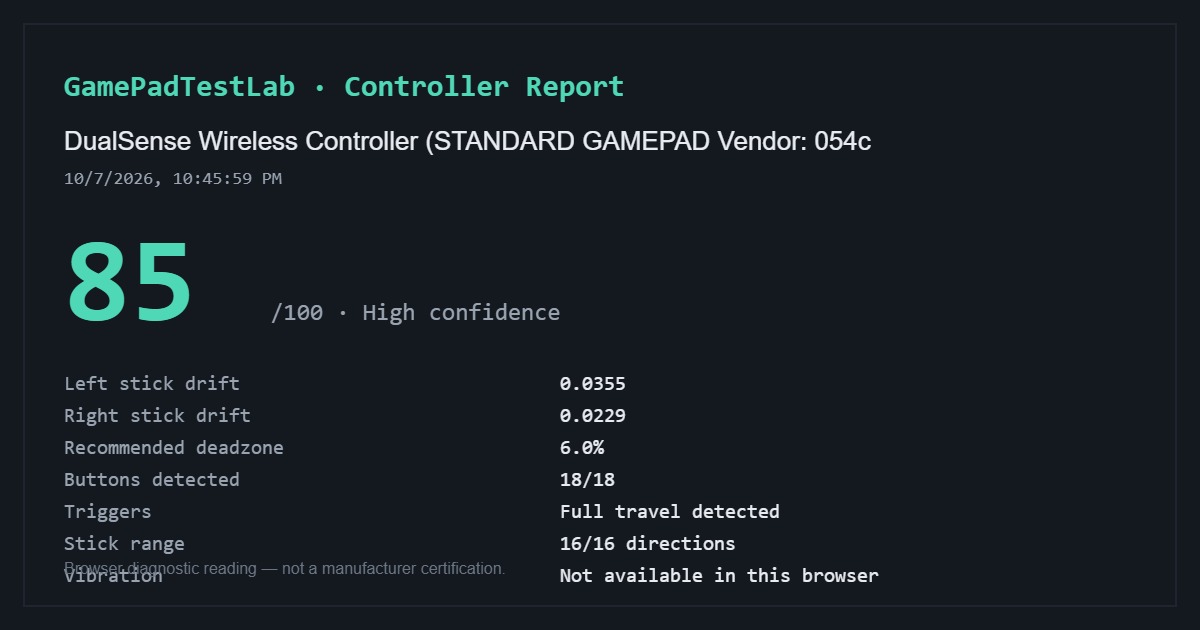
Documented DualSense report — 85/100
Captured: 10/7/2026, 10:45:59 PM (as shown in the report)
Browser identification: DualSense Wireless Controller (STANDARD GAMEPAD Vendor: 054c)
The captured report shows 0.0355 left-stick drift, 0.0229 right-stick drift, a 6.0% recommended deadzone, 18/18 buttons detected, full trigger travel, 16/16 stick directions, and vibration unavailable in that browser.
This is one recorded test only. The connection method, compatibility-software state, browser, and operating system were not recorded; the controller name alone does not establish the transport used.
See the testing methodology for how browser-visible readings are calculated and where their limits lie.
Live input
Press anything — the diagram reacts instantly
Stick drift test
Timed resting measurement of both analog sticks
Connect a controller and press any button to enable this test.
Button test
Press every button once — each one lights up as the browser sees it
Connect a controller and press any button to begin.
Trigger test
Pull each trigger slowly from rest to fully pressed, several times
Connect a controller to test the triggers.
Troubleshooting
Controller not detected? Work through this checklist
Nine checks covering focus, cables, Bluetooth pairing, background software, DS4Windows virtual controllers and browser support - open it only if your controller is not showing up.
Connecting a DualSense
Over USB, plug a data-capable USB-C cable into the controller and press any button. Over Bluetooth, hold Create and the PS button until the light bar flashes, then pair from your computer's Bluetooth settings.
If the pad pairs but nothing appears here, press a button while this page is focused — browsers hide gamepads until they send an input.
What a browser can and cannot reach on a DualSense
Reachable: both sticks and their resting drift, Cross, Circle, Square and Triangle, L1 and R1, L2 and R2 trigger travel, the D-pad, L3 and R3, Create and Options, and usually the PS and touchpad click.
Not reachable: adaptive trigger resistance, fine haptics, the light bar, the microphone and the touchpad's finger positions. The standard interface reads how far L2 and R2 are pulled but cannot control their resistance.
Checking DualSense stick drift
Put the controller flat on a table, let go of both sticks and start the timed resting measurement. Over nine seconds it records the current, average, median, peak and 95th-percentile offset for each stick, plus how far the centre point sits from zero.
Use the site's application-defined bands as guidance rather than a DualSense warranty standard. A repeatable offset in one direction matters more than a single spike, and the full breakdown lives in the dedicated stick drift test.
Drift that only shows up after you push a stick to the edge and release is a recentring problem rather than resting drift. Watch the return path in the circularity and range test.
Testing DualSense buttons: Cross, Circle, Square, Triangle and the rest
The guided sweep asks for each input in turn and counts how many of the pad's buttons have registered, so you can see at a glance whether anything never responded. Cross, Circle, Square and Triangle, L1 and R1, the D-pad, L3 and R3, Create, Options, the PS button and the touchpad click are all normally visible.
A button that stays lit after you release it is a stuck state and gets flagged separately. Repeat the input and compare another connection before deciding whether the cause is physical wear, debris, remapping or a transient browser report.
Before concluding a button is dead, retest it, try a different cable or connection, and try another browser. Capture software such as Steam Input or DS4Windows can quietly intercept inputs.
L2 and R2 trigger travel
The trigger test shows live L2 and R2 bars with the resting value, maximum reached, total travel and the difference between left and right. A healthy trigger rests at zero, climbs smoothly and reaches full range.
A non-zero resting value means the trigger is not returning fully; a maximum well below full range means limited travel. Both are visible in the browser even though the adaptive resistance motors are not.
Testing a PS5 controller on PC
Sony documents DualSense USB and Bluetooth use on supported Windows and macOS versions, but browser feature exposure still varies by operating system, browser and connection. A successful operating-system pairing does not guarantee that every feature is available to this page.
If the pad appears in the operating system but not here, another program is most likely holding it. Close Steam (or disable Steam Input for the controller), DS4Windows and any remapping utility, then reload and press a button.
Frequently asked questions
- Can I test PS5 stick drift without a console?
- Yes. Connect the DualSense to a computer and run the resting drift measurement here — no PlayStation needed.
- How much DualSense resting drift is normal?
- A small amount of movement is expected. GamePadTestLab treats up to 0.01 as its default healthy band, but repeatability, direction and in-game behaviour matter more than one universal cutoff.
- Why does the touchpad click work but swiping does nothing?
- The click is exposed as an ordinary button. Touch coordinates are not part of the standard browser gamepad interface.
- My DualSense works on PS5 but not on PC. What now?
- Use a data USB-C cable rather than a charge-only one, re-pair over Bluetooth, and close Steam if it is capturing the controller through Steam Input.
- Does this test adaptive triggers?
- It measures how far L2 and R2 travel, which is the useful diagnostic. The adaptive resistance mechanism itself is not accessible from a web page.
- Can this page fix DualSense drift?
- No. It measures what the browser can see and tells you how severe the deviation is. Repair means cleaning, replacing the stick module or a warranty claim.
Continue testing
- Controller Stick Drift TestRun a timed resting measurement on both analog sticks. See average, median, peak and 95th percentile offset, plus a clear verdict on whether your controller is drifting.
- Controller Trigger TestTest analog trigger travel online. Measure resting value, maximum pull, travel percentage and the difference between left and right triggers.
- Controller Button TestGuided gamepad button tester. Press each button once and see which ones register, which never respond and which appear to be sticking.
- Controller Deadzone TestInteractive deadzone visualizer for analog sticks. Adjust the radius, see which movement gets ignored, and get a recommended minimum deadzone from your own measured resting noise.
- Controller Health CheckRun a guided full diagnostic and get a transparent controller health score with per-category results, a confidence level and a downloadable report card.
GamePadTestLab reports what your browser can see. It cannot repair stick drift, certify hardware, or read a controller's firmware. Read the testing methodology for exactly how each figure is calculated and where it stops being reliable.
Built and maintained by Joseph Sanusi
Software Developer - GamePadTestLab
Last updated: 16th October 2026