PS5 DualSense コントローラー テスト
DualSenseをUSBまたはBluetoothで接続し、ブラウザが認識できる入力をすべて確認します。スティック、ドリフト、ボタン、トリガー、方向キーに対応。
コントローラーの状態
コントローラーが検出されません
USBまたはBluetoothでコントローラーを接続し、いずれかのボタンを押してください。
複数のコントローラーが接続されている場合は、それぞれを選択して個別にテストできます。
- ブラウザーは最初の入力後にコントローラーを認識します。フェイスボタンを押すかスティックを動かしてください。
- USBとBluetoothのどちらも使えます。表示されない場合は再接続し、このページを選択した状態でボタンを押してください。
- リマップツールが先にコントローラーを取得することがあります。ツールを終了してページを再読み込みしてください。
- 振動を含む多くの機能を利用するにはChromeまたはEdgeがおすすめです。
PS5 コントローラーテストの参考資料
これは記録済みテストの参考資料であり、現在このページに接続されているコントローラーのライブ画面ではありません。
この1枚の画像は、1台の DualSense についてブラウザーに表示された1件のレポートを保存したものです。この記録結果だけを示しており、互換性調査やハードウェア性能全般についての主張ではありません。
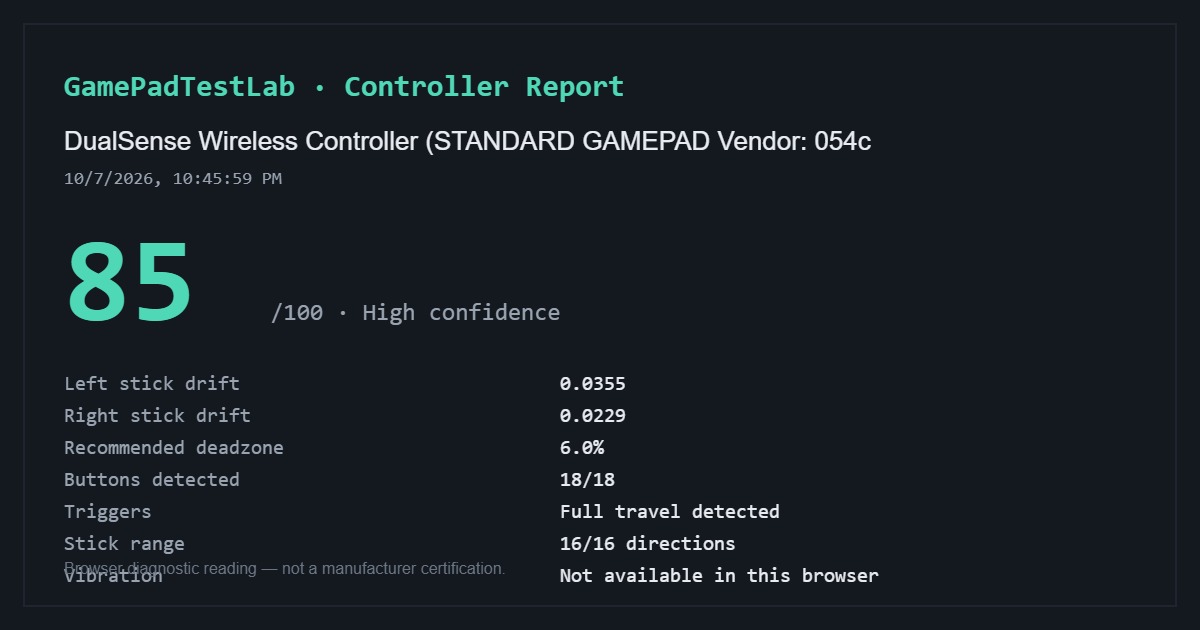
記録済み DualSense レポート — 85/100
記録日時: 10/7/2026, 10:45:59 PM (レポートに表示された表記)
ブラウザーでの識別名: DualSense Wireless Controller (STANDARD GAMEPAD Vendor: 054c)
記録されたレポートには、左スティックのドリフト 0.0355、右スティック 0.0229、推奨デッドゾーン 6.0%、検出ボタン 18/18、トリガー全域、スティック方向 16/16、そのブラウザーでは振動利用不可と表示されています。
記録されたテストはこの1件のみです。接続方法、互換ソフトウェアの状態、ブラウザー、OS は記録されておらず、コントローラー名だけでは使用された接続方式を特定できません。
ブラウザーに表示される測定値の計算方法と限界については、テスト方法をご覧ください。
入力のライブ表示
ボタンやスティックを操作すると、図にすぐ反映されます
スティックドリフトテスト
左右のアナログスティックを静止状態で計測します
コントローラーを接続し、いずれかのボタンを押すとこのテストを開始できます。
ボタンテスト
各ボタンを1回ずつ押してください。ブラウザが認識するとそのボタンが点灯します
コントローラーを接続し、いずれかのボタンを押して開始してください。
トリガーテスト
各トリガーを離した状態から最大まで、ゆっくり数回押してください
トリガーをテストするにはコントローラーを接続してください。
トラブルシューティング
コントローラーが検出されませんか? このチェックリストを確認してください
フォーカス、ケーブル、Bluetoothペアリング、常駐ソフト、DS4Windowsの仮想コントローラー、ブラウザー対応を確認する9項目です。コントローラーが表示されない場合だけ開いてください。
DualSenseの接続方法
USBの場合はデータ転送対応のUSB-Cケーブルを挿し、いずれかのボタンを押します。Bluetoothの場合はCreateボタンとPSボタンを長押ししてライトバーが点滅したらペアリングします。
ペアリングできてもここに表示されないときは、このページを前面にしてボタンを押してください。
ブラウザで確認できる範囲
確認できるもの:両スティックと静止時のドリフト、×・○・□・△、L1とR1、L2とR2のストローク、方向キー、L3とR3、CreateとOptions、多くの場合タッチパッドのクリック。
確認できないもの:アダプティブトリガーの抵抗、細かなハプティクス、ライトバー、マイク、タッチパッドの座標。
よくある質問
- 本体がなくてもPS5のドリフトを確認できますか?
- できます。DualSenseをパソコンに接続し、このページで静止計測を実行してください。
- PS5では動くのにPCで認識されません
- データ転送対応のUSB-Cケーブルを使い、Bluetoothをペアリングし直し、Steam Inputが掴んでいる場合はSteamを終了してください。
- アダプティブトリガーはテストできますか?
- L2とR2の押し込み量は計測できますが、抵抗の制御自体はウェブページからは扱えません。
続けてテストする
コントローラーの入力データはこの端末から外に出ません。 テスト方法について